
How to Convert Mobile Notes (Notepad) to Professional PDF: A Complete Guide
In our fast-paced digital world, inspiration rarely strikes when we are sitting at a desk. Whether it's a brilliant business idea, a grocery list, or a draft for a new article, most of us use our smartphones' built-in Notepad or Keep apps to capture thoughts on the go. However, a raw text file or a screenshot of your notes often looks unprofessional when shared with a client, a professor, or a colleague.
Converting your mobile notes into a PDF (Portable Document Format) is the best way to transform a quick thought into a formal, shareable document. In this 1,000+ word guide, we will walk you through the easiest methods to convert notes from Android and iOS into high-quality PDFs using an online PDF converter.
1. Why Convert Your Notes to PDF?
You might ask: "Why can't I just copy and paste the text into an email?" While that works for quick messages, it fails for official documentation. Here is why PDF is superior for your notes:
- Formatting Preservation: If you've used bold text, checklists, or bullet points in your note app, converting to PDF ensures that the layout stays exactly the same on any device.
- Document Integrity: Unlike a text file (.txt), a PDF cannot be easily altered by the recipient, ensuring your original thoughts remain intact.
- Professionalism: Sending a PDF attachment looks much more prepared and formal than sending a long, rambling text message or a grainy screenshot.
- Universal Access: Every smartphone and computer in 2026 has a built-in PDF viewer. You never have to worry about the recipient "not having the right app" to open your notes.
2. Method 1: Using Your Phone's Built-in "Print to PDF"
Most modern smartphones (Android and iPhone) have a hidden feature that allows you to "print" any screen as a PDF file. This is the fastest way to start the process.
For iPhone (iOS) Users:
- Open your Notes app and select the note you want to convert.
- Tap the Share icon (the square with an upward arrow).
- Scroll down and tap Print.
- When the print preview appears, use two fingers to "pinch out" (zoom in) on the preview image. This action converts it into a PDF view.
- Tap the Share icon again and save the file to your "Files" app or send it via email.
For Android Users:
- Open your note in Google Keep or your brand's default Notepad.
- Tap the three dots (menu) and select Send or Share.
- Choose Print.
- In the printer selection dropdown, choose "Save as PDF."
- Tap the PDF download icon to save it to your internal storage.
3. Method 2: Professional Conversion via Online Tools
While the built-in print feature is handy, it often produces PDFs with awkward margins or cut-off text. For a truly professional look, we recommend using a dedicated TXT to PDF converter.
Step 1: Copy the text from your note app.
Step 2: Paste it into a document editor or save it as a .txt file.
Step 3: Upload the file to our online tool. Our engine will automatically apply professional margins, standard fonts (like Helvetica or Arial), and page numbers.
4. Organizing Multiple Notes into One PDF
Often, a project consists of several small notes spread across different days. Sending five separate PDFs is inefficient. This is where a PDF Merger becomes invaluable.
By converting each note to an individual PDF and then using our Merge PDF tool, you can create a single, cohesive "Project Brief" or "Study Guide." This organization makes it much easier for the recipient to follow your logic and review your data.
| Feature | Note Screenshot | Converted PDF |
|---|---|---|
| Text Search | No (Image only) | Yes (Fully Searchable) |
| Editing | Impossible | Possible with PDF Editor |
| File Size | Large (Image data) | Small (Vector/Text data) |
| Professionalism | Low | High |
5. Creative Use Cases for Note-to-PDF Conversion
How are others using this feature? Here are some popular use cases we've seen on our platform:
- Recipe Books: Many users jot down cooking tips in their notes and then convert them to PDF to create a digital cookbook for their family.
- Travel Itineraries: Planning a trip? Keep your flight numbers and hotel addresses in a note, then convert it to a PDF so you can access it offline during your travels.
- Interview Preparation: Write your talking points in your phone, convert them to PDF, and view them on your tablet for a clean, distraction-free reference during the call.
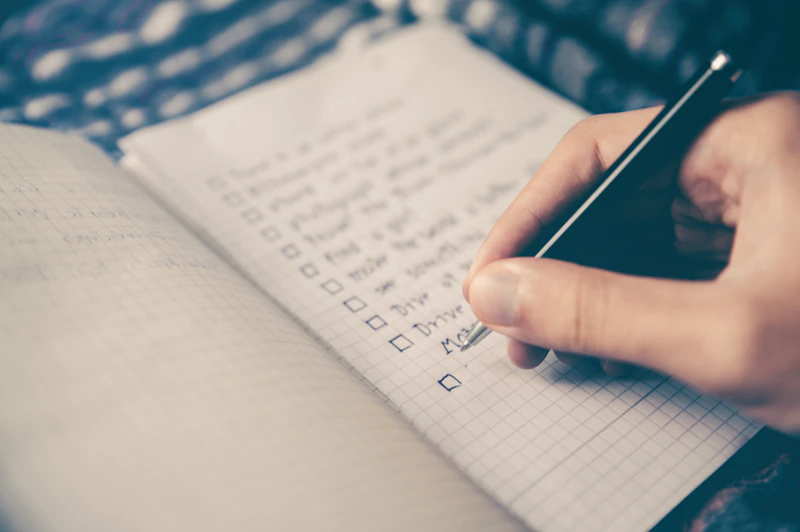
Caption: Turn your messy checklists into clean, professional PDF reports.
6. Enhancing Your Notes Before Conversion
Before you hit that convert button, here are a few "pro tips" to ensure your PDF looks amazing:
- Use Headers: Use ALL CAPS or bold text for your main points to create a visual hierarchy.
- Add Links: If your note app supports it, add URLs. Most high-quality converters will keep these links clickable in the final PDF.
- Check for Typos: Unlike a text message, a PDF feels "permanent." Give it a quick proofread before you finalize the file.
Conclusion
Your mobile notes are a goldmine of information, but they deserve a better format than a simple text bubble or a screenshot. By converting your Notepad entries to PDF, you are taking a step toward better digital organization and a more professional presence. Use our suite of online PDF tools to convert, merge, and protect your ideas today.
Ready to Professionalize Your Notes?
Don't just share a text; share a document. Try our conversion tools now:
- Merge PDF – Combine multiple notes into one book.
- Image to PDF – Add images or a signature to your notes.